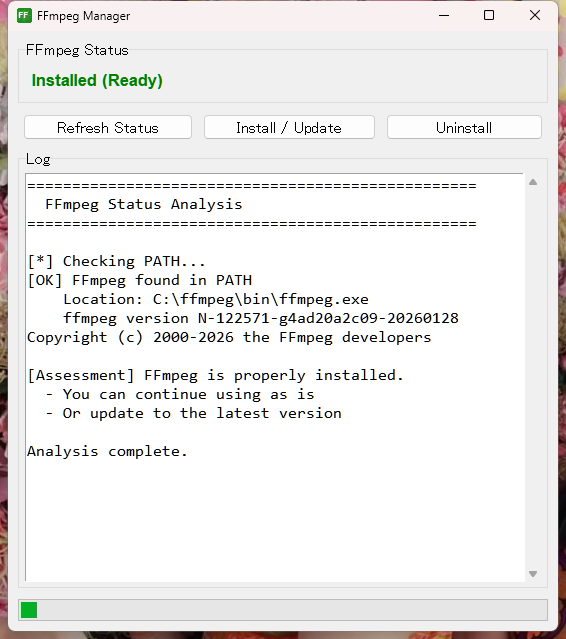
A GUI tool that makes it easy to install, update, and uninstall FFmpeg. You can manage FFmpeg with just button clicks, without any command line knowledge.
Background
FFmpeg is a very powerful audio and video processing tool, but installing it on Windows has been challenging for beginners. It requires multiple steps: downloading, extracting, and configuring the PATH.
To solve this problem, I previously released three batch files: ffmpeg_install.bat, ffmpeg_uninstall.bat, and ffmpeg_analyzer.bat. This tool integrates all those functions into a single GUI application.
Features
Status Analysis: Automatically detects FFmpeg installation status and displays it clearly
Installation: Automatically downloads, installs, and configures PATH for the latest FFmpeg
Update: Updates existing FFmpeg to the latest version
Uninstallation: Removes FFmpeg and cleans up PATH
Automatic Notification: Automatically notifies Windows system after environment variable changes
System Requirements
OS
Windows 10 or later
Other
Internet connection (for installation and updates)
Double-click ffmpeg_manager.exe to launch. On startup, the current FFmpeg status is automatically analyzed and displayed.
Interface
FFmpeg Status
Displays the current FFmpeg status with color coding.
Installed (Ready): Successfully installed
Found (PATH not configured): Files exist but PATH is not set
Not Installed: Not installed
Refresh Status
Re-checks the current status.
Install / Update
Installs or updates FFmpeg.
Uninstall
Uninstalls FFmpeg.
Log
Displays detailed processing logs.
Install / Update Button Behavior
The tool searches the PATH environment variable to determine FFmpeg's status, and the behavior changes according to the current state.
If FFmpeg is not registered in the PATH environment variable
If no files exist at C:\ffmpeg: Performs fresh installation and configures PATH
If files exist at C:\ffmpeg: Updates files to the latest version and configures PATH
If FFmpeg is registered at C:\ffmpeg\bin in the PATH environment variable
Downloads the latest version and overwrites the existing installation.
If FFmpeg is registered outside C:\ffmpeg in the PATH environment variable
Displays a confirmation dialog. If agreed, removes the existing PATH and performs a fresh installation to C:\ffmpeg.
Installation Process Flow
Check network connectivity and disk space
Download the latest version of FFmpeg (with progress display)
Verify the downloaded file
Extract the ZIP file
Install files to C:\ffmpeg
Register C:\ffmpeg\bin to the PATH environment variable
Notify Windows system of environment variable changes
Clean up temporary files
Important: Even after system notification, the changes will not be reflected in already open Command Prompt or PowerShell windows. After installation completes, open a new window to use FFmpeg.
Uninstall Button Behavior
Deletes the C:\ffmpeg folder
Removes C:\ffmpeg\bin from the PATH environment variable
Notifies the system of the environment variable changes
Note: Only removes C:\ffmpeg\bin managed by this tool. PATH entries for FFmpeg installed in other locations remain unchanged.